Fix USB Device Not Recognized Error
When you use USB devices in Windows, Windows will load and install a device driver to communicate with the new USB device. A lot of standard USB device drivers are included with Windows XP, even more in Vista, Windows 7, Windows 8 and Windows 10. But if the USB device is not supported by Windows, you will see a USB device not recognized error like the one below.
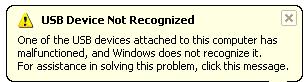
You can try unplugging the USB device, waiting a few seconds and plugging it back, but chances are the error will remain.
Another error message that is common is the message Unrecognized device has been found.
When you open the Windows Device Manager from the Control Panel, you will generally see the USB device under the Other devices or Unknown devices category.
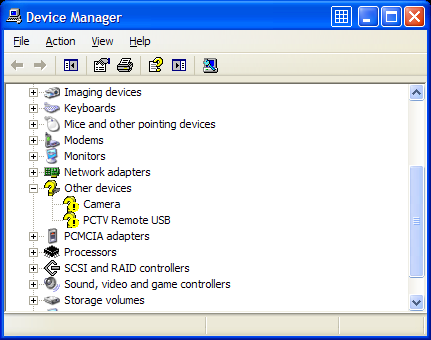
In case of an external hard disk, you may also get the error:
One of the USB devices attached to this computer has malfunctioned, and Windows does not recognize it.
Also keep in mind that if you don’t have the right USB drivers for your device, Windows might be using a default, compatible driver, which restricts the performance or limits the features of your USB device. This is particularly true for USB 2.0 and USB 3.0/3.1 ports.
How to fix a USB device not recognized error.
Considering the fact that in most cases the USB device driver is missing in Windows, the common solution to fixing the USB device not recognized error is to install the driver for the USB device. In most cases new USB devices come with a driver CD which contains the USB driver that needs to be installed. If you do not have a driver CD, you can try to find and download the USB device driver on the manufacturer’s website.
In case you really can not find the device driver for the USB device, you can use a driver finder program. Such a program will find and download device drivers on your PC based on the hardware that it automatically identifies. Even if your USB device is not plugged anymore, the application will be able to find and download a USB driver for it.
When you do have a driver CD, it’s still smart to use a driver update program to get an updated driver for your USB device. Drivers on CDs are quite often outdated and updated drivers can solve problems, improve performance and add features.
A second benefit to a driver finder program is that it can update all outdated drivers on your system. This means that the system or chipset drivers will also be updated, including the USB chipset drivers on your motherboard. This could also solve the USB device not recognized error, whether it is a USB 2.0 port or USB 3.0 port.
Other methods to repair the USB device not recognized error
In case the USB driver update does not solve the USB device not recognized error, there are a few other things that you can try to solve the error.
- If your USB device is using a separate USB cable, try changing the cable to make sure the USB cable is not defective. For external hard disks that are not recognized, a shorter USB cable can sometimes help as the power voltage can be a problem in those cases.
- If you are getting a USB not recognized error when you are trying to connect a mobile phone or MP3 player, check the configuration options on the device itself. The settings often allow the device to be configured as a Mass Storage Device, which can solve the problem.
- Check the BIOS of your computer to make sure the USB ports are configured properly. Most new USB devices work best with the USB 2.0 configuration, but in some cases you might need to change the USB to “legacy” support, which means version 1.1.
- Disable the power management of USB hubs on your computer. This can sometimes help with certain USB devices, especially if the problem happens with power state changes (resume from hibernation for example).
- In the Device Manager, right-click the Universal Serial Bus controllers device and select Uninstall in the popup menu. Now reboot and Windows will reinstall the device.
- In case you are using a USB hub, try plugging the USB device directly into the computer instead of in the USB hub. USB hubs often cause compatibility problems with certain USB devices. The cause can be the USB version compatibility or a USB power limitation.
- Try shutting down the computer altogether and unplug it from the power supply. Wait for a few minutes before plugging it back again and starting it. In case you are using a laptop, also unplug the laptop battery in this step.
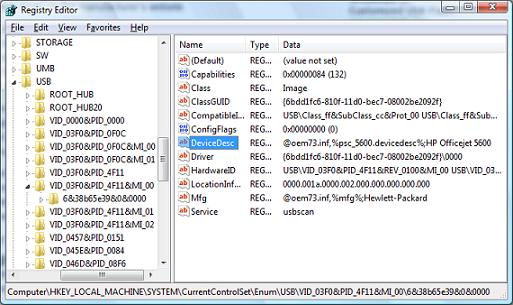
- Delete the related registry key under “HKEY_LOCAL_MACHINE\SYSTEM\CurrentControlSet\Enum\USB” from the Windows registry. Each USB device has an entry there starting with “VID_”. Find the related entry to your USB device and then delete it. Make sure you make a backup of the registry before deleting anything!

Restart Windows and then try plugging the USB device again. - Specifically for Windows XP, there is another possible solution that is related to the Windows Registry. This pertains to removing the UpperFilters and LowerFilters registry values. Microsoft has a knowledge base article on how to do this.
Fix USB device not recognized error in Windows 10
Although all steps mentioned in this article can be tried in Windows 10, there is another solution you can try in Windows 10 to fix the USB not recognized problem. That solution is using the Windows Troubleshooter.
Press the Windows + I key to open the Settings app. Then select the Update & Security option, and then select Troubleshoot in the left-hand menu.
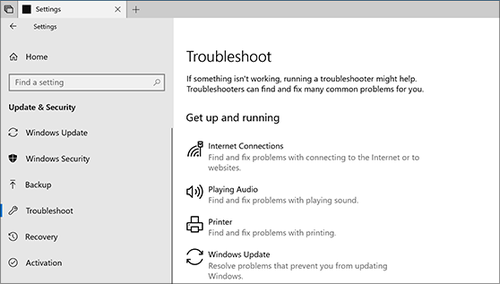
Next, select Hardware and Devices, and finally click the Run the troubleshooter button.
Simply follow the instructions on screen and check if the problem persists after the troubleshooter completes.
Further useful programs to deal with USB problems are USBDeview, which is a freeware utility to view USB devices, and USB View from Microsoft. They show a lot more about your USB devices than the Device Manager does, so they can be helpful to pinpoint problematic USB devices. The USB View program from Microsoft has the advantage that it shows the hierarchy, so you can see which device is connected to which USB Controller and USB Hub. But the program is part of the Microsoft development tools, so unless you can find a reliable individual download, you need to install complete development environment.
Most USB device not recognized errors can be solved with one of the above solutions. If you have any other solutions, or a USB problem that did not get solved using these tips, please leave a comment and I’ll get right on it!
Tip: Scan your computer for missing device drivers.
Specific to Windows 10 USB drives, you might find the article on fixing USB drives not showing up in Windows 10 useful.


@Doris – The only thing required for a computer to recognize the apple devices, like an ipod, is to have the right drivers installed for it. In Windows, installing iTunes will automatically install the apple drivers for such devices.
Once a device is plugged, it will be detected and the driver is activated for that device.
Since this is not working for your iPod Shuffle, I suggest you try:
– reinstalling iTunes
– trying a different USB port for your iPod
– installing the device drivers for apple devices separately (instead of relying on the iTunes installation only)
Hope this helps.
My computer and i-tunes will not recognize my ipod shuffle. My computer tries to solve the problem but the answer is “USB mass storage device is not working properly” I am not very good at this so I hope the answer is simple fix. Thank-you for any help.
@ James G. Harding – Please do not put your license and password on comments like that. Anybody can copy them and use them!
But it could be that you are not using the right details. The best thing to do is to use the license retrieval page of the manufacturer to get the correct details. Just enter your receipt # and email address there (with the captcha) and it will show you the license details.
If that does not work, you can simply contact them on their support page. They have a very responsive customer support team.
I just purchased the driver fix and was given License #432410 password 3uva9yhga but when I tried to activate the message was that my numbers were incorrect. How do I get this fixed?
Thank you for your help and comments.
@Rupak – Have you tried the HP pen drive in a different computer? You should do that first to make sure the USB drive is not the problem.
If it is related to only your computer, try the uninstall of the USB Root Hubs in the Device Manager and rebooting to reset the USB device configurations.
If that does not help, try shutting down the laprop, remove the battery, wait a few minutes and then power back up.
After that plug the HP Pen drive again.
@Daniel RAY – There is always a possibility of a hardware issue, and even if the problem is not hardware related, solving it make take so much time (or appear impossible) that it is better to select the option you did. A PCI USB card is the best solution for a desktop, while for a laptop there are also PCMCIA to USB solutions.
And you are right, even though ASUS motherboards are one of the best, there comes a time to replace it. Also allows you to consider upgrading the overall computer performance with a faster CPU!
After many test, I determine at 90% that it is a hardware problem. I buy a Conceptronic PCI to 4 USB 2.0 adapter. This adapter require no driver. I install it and works without any problem. So I have now 4 working USB 2.0 ports for 11.00 €. (13.00$)
My mother is an ASUS P5W DH Deluxe aging about 6 years old.
Time to change.
Hi,
When I plug my 8 GB HP pen drive into one of the USB ports of my HP laptop, it shows “USB DEVICE NOT RECOGNIZED”.. I tried updating the driver but still facing the same issue. Please have a solution.
Thanks in Advance.
After doing a lot like Paul I have exactly the same problem
Paul says:
November 10, 2010 at 8:04 am
@Anthony – so I uninstalled USB port hub and re-enabled USB2 controller – at the moment all the devices became not recognized. I disabled the controller again and it’s all being recognized… Just don’t know what to do next.
So I can use my PC as USB 1.1 but not 2.0 very bad.
Did you find a solution ?
Is it a hardware problem ?
@Samy – Are you certain the unrecognized device error is caused by the HP Officejet printer? Check the unknown device properties in the Device Manager to make sure.
If it is, then try using a different USB port if possible, sometimes that can already help (configuration data for devices stored at USB port level in the registry can get corrupted).
And if that does not help, please let me know:
– your Windows version
– did this HP Officejet already work on the same computer before?
MY HP Printer is connected via a USB and I’m recieving the unrecognized device error. I’ve uninstalled the HP Officejet All-in-one J3600, then reinstalled it from the website. then Unplugged, powered down (from direct current) and still it does not recognize device. Any other suggetions is appreciated.
@michael – Not sure if D. Berks’ solution will work for you, but normally I would not advise disabling USB 2.0 to have devices work in USB 1.1 mode. Especially with devices that benefit from the higher USB speed (like external HDDs and video capture devices), but just check if your capture card is USB 2.0 compatible. And of course see if your USB ports are even USB 2.0 compatible, because if it is an older laptop with USB 1.1 ports, while the capture card requires a 2.0 port, it will also not work.
Hello Micheal,
i finally found the problem. Everything works when i inactivate the USB2 Enhanced Host Controller (but it works in USB 1.1-mode… realy slow). When i switch it to active, everything is not recognized anymore.
Since i do not need any fast USB-connections right now, i am prosponing a new install of w7. But i need it sometime in the future i think…
hello there,im encountdering a problem with a capture card i hope you can solve this.It seems when i plug it in to my laptop,i get the usb ,malfunction error,iv tried uninstalling and reinstalling the drivers it did not work.My laptop is quite old its a toshiba.Is it to do with my laptop age or is the usb defective?ive tried it into my pc but it worked in my pc just not my laptop.
@sam – Have you checked the Device Manager to see if any device is shown as unknown? If so, try uninstalling that, and rebooting.
Btw, is this a USB memory stick or an external USB hard disk you are having this problem with?
hi..my usb worked properly yesterday..but today after receiving photos from my friend through yahoo photo sharing i dragged that folder to my usb..later on when i plugged in again its unable to detected..there is no message shown about whats wrong with it.. its not shown in my computers..tried searching it in disk manger not found in that too..even tried in other laptop but the result is same..i have windows 7…am able to hear the plug in and plug out sound but no other resopnse.please help i have plenty of photos in it…
Hi Paul,
thx for the quick reply. I am sorry to hear that you did not find a solution either. Although the USB-stick might have been the cause it is a strange finding… I have no other USB-devices plugged in, other than my mouse and keyboard, that i use since the day i bought this computer some 1.5 years ago.
I will now go for a total reinstallation of w7. Hopes it works and it’s not some motherboard breakdown or something…
I’ll let it know if it halps, so others can find this post and may be helped by it…
Best Regards, Durk
Hi Durk Berks,
since you’ve already tried everything and it’s driving you mad, you might be right – problem unsolvable…
I tell you what happened in my case finally, something sooo stupid and unexpected.
I’ve updated everything too, even did a new fresh install of Windows, then I’ve striped my PC into pieces to find out my motherboard being unrecoverable from the problem – sold it as is and bought a new one, while at it, I’ve treated myself with a new CPU as well.
Just several weeks later I believe I found out what cuased the problem in my case. One day I tried to plug in a small USB stick – bluetooth receiver – into my ‘new PC’ and the same problem appeared immediately- device not recognized and all my USB plugs running just in 1.1 mode! I removed the stick at once and was happy to see my PC recovered this time.
That’s when I realized that that stick I kept pluged into my ‘old PC’ all the time for several months and used to connect my phone just once or two times. Something happened with the bluetooth receiver meanwhile (maybe overheated?) and that (I believe so) caused the unrecoverable problem with the motherboard and all the USBs.
I’d say whatever USB sticks you’ve pluged into your PC lately try to plug them into another PC/notebook to see if they all work just fine. May help to find an ‘infected USB stick’. Or not, hard to say. Another question is if you can recover your motherboard, probably not…
Paul
Hi Paul,
did you find a solution to your problem? I am having the EXACT same problem since 4 days. It’s driving me mad…
I tried everyting that is in all the forums, but nothing helpt.
I am guessing it seems something like it enables USB 2.0, but it is not there? May it be a conflict with the BIOS? I update ALL (BIOS, windows drivers etc.).
I truly HATE this problem that seems unsolvable…
Kind regards, Durk Berks