How to Export Your Windows Contacts to Outlook in Vista

by Kyle
Filed under: Outlook 

When you are working with Windows Vista, you might be using the new Windows Mail as the default e-mail program. Windows Mail uses the standard Windows Contacts folder for each user to store contacts. If you switch to Microsoft Outlook, you would want to migrate these contacts to Outlook.

The simple way to do this is to export the Windows contacts and then to import them in Outlook. Here are the steps on how to do that:

  1. Open Windows Mail.
  2. In the File menu, select Export and in the submenu, select Windows Contacts…
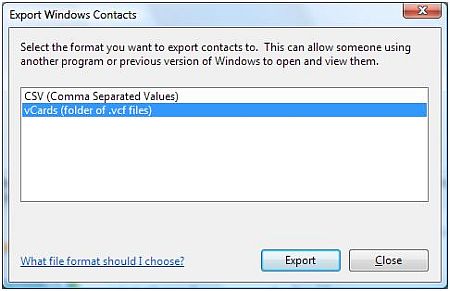
  3. In the Export Windows Contacts window, select the vCards format and click the Export button.
  4. Export Windows Live Mail Contacts
  5. Next, select a folder for the exported contacts and click OK.
  6. Click OK to confirm the message informing you of the successful export, and then click Close.
  7. Now open Microsoft Outlook.
  8. In the File menu, select Import and Export…
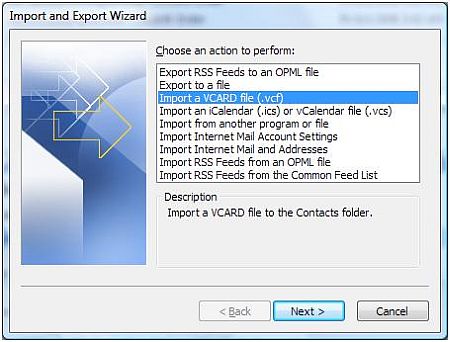
  9. In the Import and Export Wizard, select the vCard format for import and click Next.
  10. Export format for Live Mail Contacts
  11. Next, select the folder for your exported .vcf files and select the contact to import.
  12. Click Open to import the contact.
  13. With the vCard file format, you need to import each contact in Outlook individually, so repeat steps 7 till 9 for each contact.
If you want to export and import all contacts in one go, you need to use the CSV format:

  1. Open Windows Mail and in the File menu, select Export, and then Windows Contacts…
  2. Now select the CSV format as the export format, and click the Export button.
  3. Again, select the location for the export file and click Next.
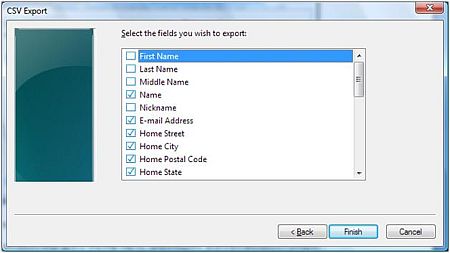
  4. The next step is to select which fields you want to export.
  5. Export Live Mail Contacts Fields
  6. Once you have selected the fields you want to export, click the Finish button.
  7. Click OK and then click Close.
  8. Start Outlook, and select your Contacts folder.
  9. In the File menu select Import and Export…
  10. Select Import from another program or file, and click Next.
  11. Select Comma Separated Values (Windows) and click Next.
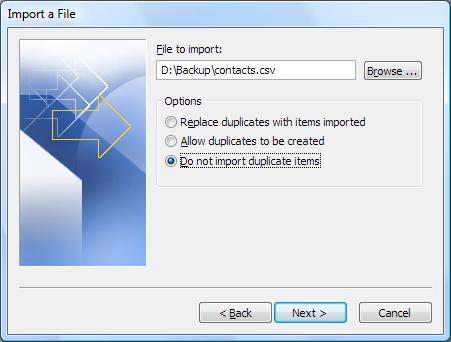
  12. Next, select the file to import the contacts from and specify how to deal with duplicate contacts.
  13. Microsoft Outlook Import
  14. Click Next.
  15. Select the destination folder for you import, which by default will be the Contacts that you already selected, and click Next.
  16. Note: If you want to use special field mapping for you import fields to your Outlook Contact fields, click the Map Custom fields… button, and adjust the default mapping.

  17. Click Finish.

All contacts in the CSV file will now be imported into your Microsoft Outlook contacts.

Comments


22 Comments to “How to Export Your Windows Contacts to Outlook in Vista”

  1. Sharron Powell says:

    I have downloaded Registry Easy and it says I have 858 Problems. I need to know that if I fix them I will not lock up my computer. How do I know what is safe to fix and what is not?
    Sharron Powell

  2. Kyle says:

    @Sharon – Just make sure you use the Backup function in Registry Easy to create a backup of your PC’s registry before fixing anything. That allows you to restore in case of problems.
    Further you could fix the errors in batches if you like, instead of all at once.

  3. Udayakiran says:

    There is a much simpler method (Works in Outlook 2007. Unconfirmed in the rest.):
    File -> Import and Export Settings.
    Then select ‘Import from another program or file’. Click Next.
    Scroll down and select ‘Outlook Express 4.x, 5.x, 6.x or Windows Mail’.
    A couple of dialog boxes and all your contacts are magically added!

  4. Isa says:

    I just wanted to say THANK YOU! for posting this info! You’d think that Microsoft would make it easier to transfer contacts from one of it’s programs to another….

  5. Kyle says:

    @Udayakiran – Thanks for your suggestion for the alternative.

    @Isa – Glad you liked it! I am sure MS thinks they have ;)

    Kyle

  6. David says:

    Kyle that was fantastic.
    Many thanks

  7. office2010 says:

    Thanks for the info,
    can confirm the trick also works with windows live mail and Outlook 2010TP

  8. Pete says:

    Thank you for the help!!!!!

    Pete

  9. Carlos says:

    Thank you very much – this is the only process that has worked!

  10. jerhy says:

    Thank you thank you thank you. Have been searching hours for this solution.

  11. Michelle says:

    This was amazing. Thank you thank you thank you!!!!!!!!!! I wish I had googled just the right phrase last night when I was trying to type everything in by hand!!!

  12. Kyle says:

    @Michelle – Next time you know where to look first ;)

  13. Keira says:

    How can I export select contacts? I have my contacts separated into folders in Wondows Contacts, and I only want to export select folders, but when I do this, I get all the contacts in the program exported.

    Thank you!

  14. Kyle says:

    @Keira – I do not think you can export selected contacts only. There are two options for what you want. The first is to edit .vcf file in a text editor and remove the contacts you do not went to import again. This is a bit tricky as the format needs to remain intact. It can be done in a text editor though.
    The second option is to export all Mail contacts, import them in Outlook and then delete the contacts in Outlook that you do not want.

  15. Rik says:

    @Udayakiran : that’s so much easier!
    thank you so much

  16. G says:

    Thank you so much, not only for having the answer, but for making it simple!

  17. Stephanie says:

    This is crazy. I had to copy my contacts to an external hard drive so as not to lose them. I was having terrible problems with Windows Vista. Finally the computer died both software and hardware. I only have my contacts on the external harddrive and need to transfer them to WIndows 7 on my new computer. Someone help. The fixes above don’t seem to apply to this situation. THere was not an option to import files from Windows Mail. Will I have to recreate everything one by one in Outlook? I can’t believe this is my only option. Someone help please!

  18. Kyle says:

    @Stephanie – You might be able to import them, but what is the file format of you contacts on the external hard disk? What is the file extension on the backup file?

  19. Stephanie says:

    Kyle that is the funny thing. I can’t seem to find a type of file extention on this….all it says is TYPE contact file. I tried properties and opening every tab and possible area and can’t find it.
    Plus the VCard option or import from Windows mail was not an available selection when I tried to import. The file version is unspecified.

  20. Kyle says:

    @Stephanie – They are probably files with the extension .contact, which is what Windows Mail uses.
    The best way to migrate contacts from Windows Mail to Outlook is to export them to CSV and then import again in Outlook, but since you have only these .contact files, that won’t work.
    One thing you can try is to simply copy the contacts from the external hard drive to your Contacts folder (C:\Users\<username>\Contacts). Then start Windows Mail and check if the contacts are available in Windows Mail. If so, export them to CSV and then you can import them into Outlook.
    You might need to download and install Windows Live Mail in Windows 7 for this.

  21. Stephanie says:

    Kyle, thanks for your help. I have just rebuilt the files one by one as best I can. I tried to export to vcard which did work but, to enter them one by one….it is almost as easy to rebuild the file manually.

    Thanks for you help.

  22. cotesyl says:

    @Stephanie :
    the other option would have been to copy your contact files into the Contact folder in Win7, then in Outlook, use File -> Import and Export Settings.
    Then select ‘Import from another program or file’. Click Next.
    Scroll down and select ‘Outlook Express 4.x, 5.x, 6.x or Windows Mail’.
    Udayakiran said, “A couple of dialog boxes and all your contacts are magically added!”
    Sylvain

Leave a Reply