How to Boost Your Laptop Audio
If you buy a laptop, the sound characteristics are not often part of the criteria. In most cases you would use a headset with the laptop, so the speaker quality is not all that important. But if you do need to use them, you will find that there is actually quite a difference in the sound quality between various laptops. Some manufacturers still try to get a decent quality sound from the laptop.
But apart from the audio quality itself on laptops, often the big problem is the sound volume. If you want to watch a movie while traveling and are not alone, you will be depending on the volume from the built-in speakers. If the sound volume is low, this means you will end up sitting rather close to the laptop if you want to catch anything being said in a movie.
Boost Your Laptop Audio Volume
The obvious solution is to increase the volume on the laptop. In Windows, you can first try to maximize the audio volume using the Windows sound volume controls. For example, try enabling or disabling the Loudness Equalization in the Enhancement tab of the speaker properties:
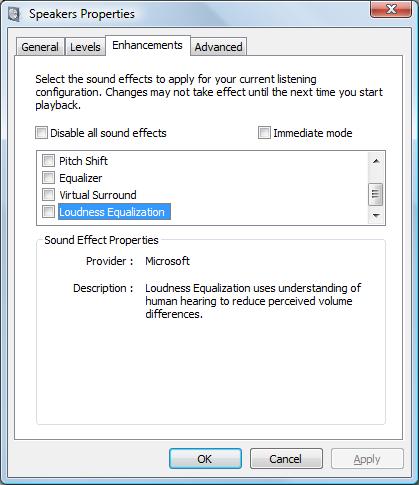
Depending on the sound card in your laptop, you can further enhance things using the audio control panel that was installed with your audio driver. Some have a Boost Volume setting that can further improve the audio volume. So the first step should always be to check that you have the latest audio driver for the sound card in your laptop, and if necessary update it.
The drawback of putting the volume to the maximum level is that this can lead to distorted audio output. This again depends on the quality of the sound card in your laptop, but in all cases, the quality will be better at 90% volume than at 100% volume.
A different option would be to increase the volume of the audio within the video file. With a tool like VirtualDub, you can increase the volume in an AVI file, and of course, there are more tools like it. A more complex option is to first separate the audio from the video file, amplify the audio and then merge the audio and video back together.
But probably the simplest way to boost your laptop’s audio volume is a plugin that amplifies the audio on the fly. There are two good solutions for this, DFX is a plugin that is compatible with a lot of media players, and SRS Audio Sandbox is the second option to improve movie sound in various ways.

Both software solutions have a trial, either with limitations or as a time trial, so it is easy to test both and decide which works best for you. One thing is for sure, you’ll finally be able to get some decent sound volume from your laptop!
Update on DFX
DFX Audio enhancer has just released version 10 of their software. There is support for more audio players on Windows (DFX now directly supports iTunes and YouTube as well), support for Windows 7, both 32-bit and 64-bit, and there is a new feature called music explorer.
The music explorer allows easy access to all your music files, using different selection options.
Update on DFX for Windows 8 and 8.1
Version 11 of the DFX audio enhancer is now available and it is also compatible with Windows 8 and Windows 8.1, which are becoming the standard on most newly released notebooks.
Update for Windows 10
DFX Audio Enhancer 13.027 is available as a free download and is also compatible with Windows 10.
Update for Chrome Users
Since so much audio and video content is streamed online these days, a lot of users will use their browser for playback. In case you are using Google Chrome (60% – 70% of users!), there is an extension that allows for audio output levels to be increased.
The extension is called Volume Master and it can be installed from the chrome web store. Once installed, you can easily access it using the extensions button next to the address bar.
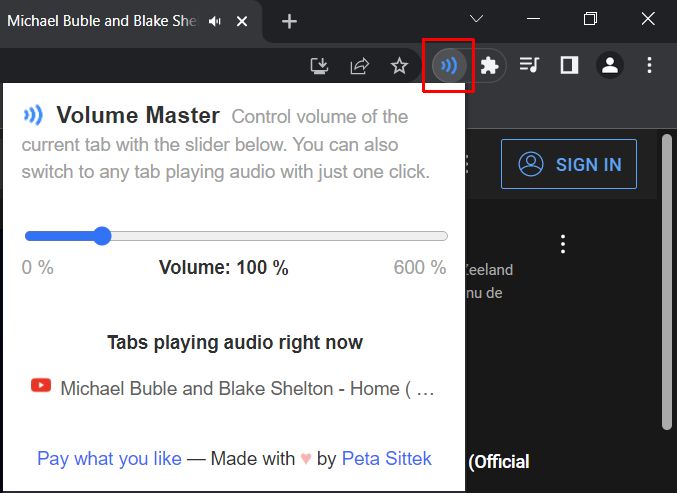
Simply use the slider to increase the volume beyond what is possible with the regular audio output options. I did not dare try the 600%, and on my laptop, the audio got some distortion, but it definitely increased the YouTube audio level that I was trying.


@Vexxarr – DFX is the older version of the program. Make sure you try their latest version, which is compatible with Windows 10. Is is now called FxSound.
DFX doesn’t work in most cases. Either the Windows 10 audio driver looks past it or it doesn’t hook into the current driver schema. Money lost.
@Evgeny – Thanks for your contribution. That must be very recent release, the buy buttons on your site don’t even work yet!
Can you send me a license so I can try it out and include it here if it is interesting? Email me at anthony at this domain in that case.
We have recently released a program that allows to boost volume in every Windows program, be it a media player, web browser or any other program. It’s not a plug-in or add-on, it works on its own. Check it out here – Letasoft Sound Booster