How to Record Video with your Webcam
With the popularity of videos online, more and more people are making their own videos. Of course you can use a camcorder to make your videos, but that often means you need a fast computer, a USB 2.0 or even FireWire port, and expensive capture software like Pinnacle Studio or Adobe Premiere. If you are looking for an easier and cheaper solution, you record video with your webcam. Of course that means you are limited to the location of your PC or laptop, but that still offers a lot of possibilities.
What do you need?
For starters you need a webcam. Most new laptops have a build-in webcam, and for those that do not, as well as for desktop PCs, there is a wide variety of webcams available. Both Microsoft (LifeCam) and Logitech (QuickCam) offer good webcam models. External webcams use a USB connection, which makes them compatible with any PC. Do check the USB version to ensure compatibility with your computer.
The second thing you need is video capture software. There are a lot of commercial products available, but if you want to experiment, you can try a free one. Download Debut Video Capture software and install it.
Now you are all set to start recording you own video.
The Webcam Recording Steps
Once installed, you start of by double-clicking the Debut Video Capture Software icon on your desktop. The program presents you with a simple user-friendly user interface.
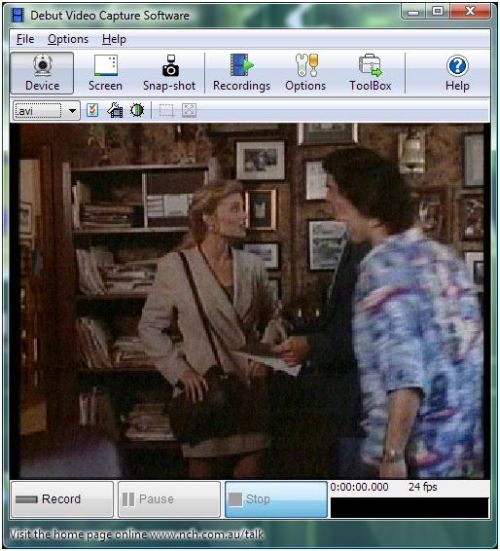
The first thing you want to do is to select the video capture device. In the Options menu, select Record. You will see the Options dialog box of the program, with the Record tab selected.
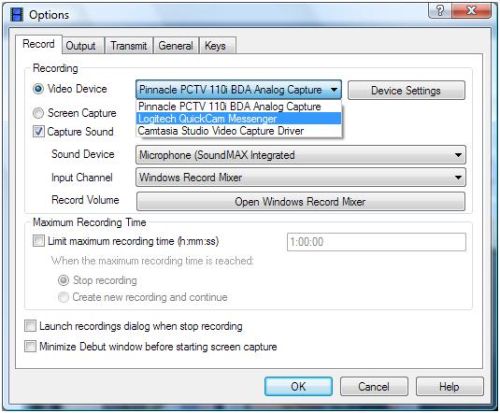
Make sure the Video Device radio button is selected, and then select your webcam in the dropdown box to the right of it. You can then use the Device Settings button to change the settings for the video capture device. The settings will vary for each webcam, but in general they will allow you to control things like brightness, contrast, flicker reduction, and other image enhancement options.
The options for recording allow you to control the sound recording and to limit the recording time.
The next thing to change is the recording format. By default the program will record to the AVI format, which is fine for most purposes. In the Options menu, select Output to change the recording options. Again we will see the Options dialog box, but now with the Output tab selected.
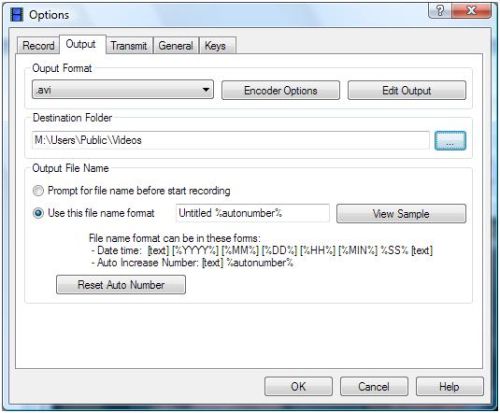
You can change the Output Format in the dropdown list. Additional output options are available behind the Encoder Options button, but they will vary depending on the selected format. The options for the AVI format are:
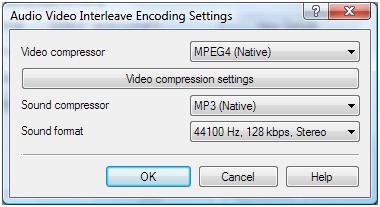
Keep in mind that compression, quality and format all have an impact on the size of the recorded file. If you want to upload your video to the internet, you do not want the file to be too large.
The next step is to click the Record button in the main screen and record what you want. Once you are done, click the Stop button to end the video recording. To access the output file, click the Recordings button in the toolbar.
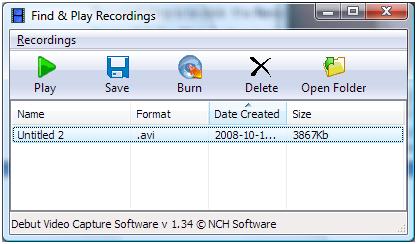
Click the Open Folder button in the toolbar of the Find & Play Recordings window to open the folder with the actual file.
Apart from the video recording, the program also has options to upload the recorded video using FTP or send it by e-mail. This makes it very easy to use for making internet videos.
If you are simply interested in screen recoding, just select Screen instead of Device in the toolbar. The screen capture option makes it popssible for everyone to create instruction videos. So if you want to show someone how to use some piece of software, or how to do a certain taks under Windows, this is the way to do it.
All in all recoding video with your webcam is very straightforward if you use the right tools.
Other Recording Choices
As an alternative you can use software that allows you to capture the output of a specified window. Using this kind of software allows you to capture video by selecting the video window of the webcam. There is a variety of software available for this, but most are commercial or shareware.
The other free option is to use Windows Movie Maker, but the video capture option is discontinued in version 6 onwards. So if you are using an older version of Windows Movie Maker, you can also use that to create a video with your webcam.
EatCam is another nice application to capture video from your webcam. It actually allows you to record your webcam sessions with popular instant messaging programs like MSN, Yahoo Messenger, Skype, ICQ and AIM. Try it out by downloading EatCam.



@Giftbearer – I hope you do understand that SilverLight is nothing more than a tool, or library, similar to the Adobe Flash plugin. Both are intended for rich media in a web browser.
So there will not be a standard application for webcam recording with Silverlight. It will require development, unless someone has already created a web application for that (I have not found it yet).
But there are other applications that you can use to record video with your webcam, and even ones that can stream it online.
Have a look at iCam, which allows you to view a video stream from the webcam on a mobile device or browser, and WebcamXP. With iCam you can stream, but not save a local copy. WebcamXP does allow that, and I think the free, home-use version might suite your purpose already.
It is on Silverlight; not online. It shows the picture of me in front of the computer when I look at the tab for webcam but there is no “record” or “make video” button anywhere that I can find. Aren’t there some step by step instructions on how to record on Silverlight? It’s strange that I can’t find any. Most of the searches on Google bring up irrelevant results that don’t get right down to how you record with silverlight.
@Giftbearer – If you updated to the latest version, the software should be okay. And if the webcam is already working, it is also not a driver issue.
Which application are you using that is showing your webcam picture? Or which website, if it is online?
Could I be missing some necessary drivers?
It shows what would be viewed in the webcam but doesn’t ask for confirmation to turn it on and I don’t know how to get it to. My son couldn’t figure it out either and he has some tech training. How do I get it to ask for confirmation to turn it on?
@Giftbearer – Silverlight will not turn on the internal webcam on your laptop without confirmation.
As long as you don’t install rogue software, Silverlight will ask the user for confirmation on the webcam access first.
Will Silverlight turn on my internal peephole webcam on my ASUS Laptop?
If so, have you got exact instructions for that? I just uploaded the 2011 most updated version.
Need to have this working by Wednesday when I have a big reveal I want to videotape.
Thanks for your help?
debut video capture software is great. thanks for the recc.
Dear sir, Thanks a lot to rectify my usb extension problem. Sir, according to your advise I connected two self powered hub with each usb extension upto 9mtr long {3×3] and the Device Manager is now showing ” The device is working properly “. But I have another problem with the same deivce. After connecting each usb extension upto 6 mtr or 9 mtr long, my pc is receving very slow motion video from usb webcam “TECH-COM Model -SSD 652 Night Vision”. I am using window sxp 3 2002 on Intel R 845GV Celeron (R) CPU 2.40GHz, 2GB of RAM. Can you please let me know how to fix it so my pc could receive normal video without any problem.
With regards!
you should try nimbb.com in which you can record 30 seconds of video for free using your webcam then you can share with your friends on facebook and twitter.
Once I download a new software for webcam, I fear that the old webcam drivers might go of my PC when I uninstall the new software. Is there a way to avoid this?
@ann – What happens when you try to uninstall eatcam from the Control Panel? Do you get an error?
@richard gibson – By “shows busy” do you mean you get an error that the webcam is in use by another program? That generally really means that a program is locking the webcam. Check all the programs and services running on the system, and close all that could be related to webcam (like multimedia applications and processes).
Sometimes reinstalling the webcam driver and software can help as well.
If all fails, try using a program like SplitCam, which allows sharing of the webcam across multiple applications. That ensures the webcam cannot be lockec by a single application.
webcam shows busy all the time, unable to locate why
i want to uninstall the eatcam webcam recorder but don’t know how….
@George – One option is to use a screen recorder (like camtasia, but there are plenty tools for this). But there are also many converters for PPT to AVI. Just do a search on that and you’ll find a lot of software that can do it directly.
I have been trying for sometime to turn my powerpoing slide into a video material without success. Do you have any tips on that?
I was playing cod on the t.v, and recording it on my laptop at the same time with this software. Whenever i moved too fast, the signal would become fuzzy on the laptop. I fixed this somehow and the picture on my laptop was flawless, but it stopped working, so i had to reinstall it. Now the signal on my laptop is fuzzy again. Can anyone help?