Hyperlinks Not Working in Outlook Express
Outlook Express is included with Windows XP, so many people use it for e-mail correspondence or even as a news reader. If you receive e-mails with hyperlinks in Outlook Express, they are shown in blue by default and underlined. Clicking a hyperlink in an e-mail in Outlook Express will open up your default internet browser and show the location the link is pointing to.
You might run into an Outlook Express problem where the hyperlinks in the e-mail messages do not work anymore. If you click the link in the e-mail message nothing happens. This is not an Outlook Express error, but can be a configuration problem related to files types in the Windows Explorer.
To solve this error, try these steps:
- Open up the Control Panel.
- Select Add or Remove Programs.
- Now select the Set Program Access and Defaults in the left-hand side of the window.
- Next, select Custom and then select Internet Explorer as the default web browser.
- Click OK.
- Open up the Windows Explorer.
- In the Tools menu, select Folder Options…
- In the Folder Options dialog box, select the File Types tab.
- In the Registered file types list, look up the Extension ‘URL’.
- In the Details for ‘URL’ extension group, make sure that ‘Opens with:’ is followed by your default browser, e.g. ‘Internet Explorer’. If not, click the Change button and select the internet application in the Open With dialog box.
- Click the Advanced button.
- In the Edit File Type dialog box that appears, select the open entry under Actions:
- Next, check if your settings match the ones in the screenshot below. If not, change them accordingly.
- Click OK twice and then click Close.
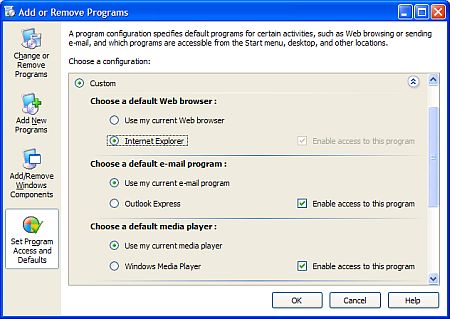
If this does not help, continue with:
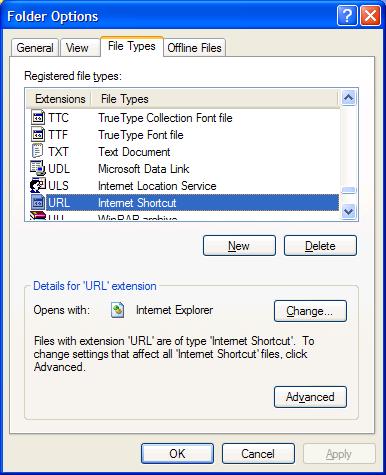
If this does not fix the problem, continue with:
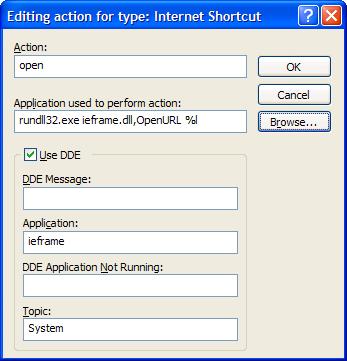
After this, you should now be able to open the hyperlinks from e-mails in Outlook Express again.
If this still does not work, you can try to repeat the steps above but replace the settings with the following screenshot.
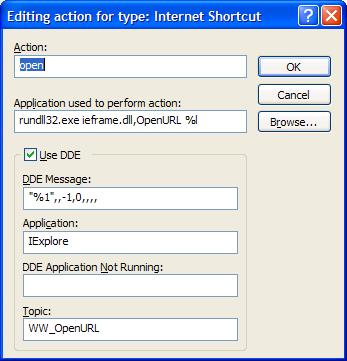
Last thing to try is to change the Application used to perform this action to:
C:\Program Files\Internet Explorer\iexplore.exe" -nohome
or
C:\Program Files\Internet Explorer\iexplore.exe" %1
These steps all address the issue that the URL association is not configured properly, so if that is the problem, one of these steps will fix it.
A second possible cause for hyperlinks not working in Outlook Express is that a support library is not registered properly. This could be a registry problem, but it can generally be fixed by re-registering the required DLL files.
So use the Run command in the Start menu to execute the following commands:
regsvr32 urlmon.dll
 regsvr32 mshtml.dll
 regsvr32 shdocvw.dll
 regsvr32 browseui.dll
 regsvr32 msjava.dll
This will register the listed Dynamic Link Library files again and correct any issues concerning them in the Windows Registry. Try clicking a link in Outlook Express again after this.


@ Keith – thanks! My hyperlinks have been working intermittently (if I reboot they will work again.. until they don’t), so I will keep this info for future use!!
Sir, you are a star; it worked for me too.
Cheryl – mine had the fully-qualified path names in it too, and taking these out (back to the settings shown in Kyle’s screenshots) did the trick for me.
Kyle – thanks very much.
Kyle –
I’ve tried everything above – in step 13 my application setting says:
“C:\WINDOWS\system32\rundll32.exe” “C:\WINDOWS\system32\ieframe.dll”,OpenURL %l
which, while containing part of what you show in your example, is considerably longer. Is my setting correct or should I shorten it to what you have?
Thanks!!
Thank you. You solved my problem. Thanks again.
Kyle, Thanks so much for explaining how to allow hyperlinks to be used again in e-mail. This has been messed up ever since IE 7 was installed and I’m back in business again because of your intsructions. Thanks so much!
@Rajesh – The article is about Outlook Express, not Outlook, so the solutions will not apply to that. Outlook Express is not available in Vista and Windows 7 anymore, it is replaced with Windows Mail.
The only thing I know about fixing the problem with hyperlink not working in Outlook is by resetting Internet Explorer in the Internet Options (Programs tab). Have you tried that?
Am using Windows 7 RC and before that was using Windows Vista both with internet explorer 8 and am not able to access links from Outlook
Had tried all the above steps when I was using Vista..
Please help
Using Windows XP Home Edition, Outlook Express 6 and IE8. Success after Step #14. You, sir, are a freaking genius! Thank you!
@Janet @ Charlie – Glad it worked for you both!
Kyle
It worked for me, the third solution. Thanks!!!! A lot better than MIcrosoft website.
Can I just tell you all what a blessing it is to have people like you out there to help! I was having the IE8 vs Outlook Express link issues and it was driving me NUTS! Could not find any answers until I google’d you. Thank you, THANK YOU!!
Your hyperlink fix works until I close and reopen IE-8. Is there anything else to do except uninstalling IE-8?
I shut the computer down last night but when I restarted it this morning, my hyperlinks from Outlook Express were working. Thanks ever so much.
@Linda – Can you provide more details? Any error message or what is happening exactly?
Kyle
Internet Explorer is my default web browser. I tried both fixes above & I still can’t open hyperlinks from Outlook Express. Linda.
Kyle, Thanks a lot ,this has pleged me for months. It took the last option to make work.
Thanks again Dan
Thank you so much…it was driving me NUTS! First option worked perfectly.
@Linda – If you mean the extension association, and the problem is reintroduced, then this means that there is a program installed on your PC that changes the URL association.
You need to identify which one and if possible change the configuration to disable this functionality.
Kyle
I followed your instructions above, and the second fix worked once, then it reverted back to not opening hyperlinks again! Any suggestions?
This was a stubborn problem ever since I upgraded to IE7.
Your final solution in the list above was the silver bullet.
Thank you.
Thanks lot
thanks lot for ur help it worked
Thanks for the tip, the first suggestion worked straight away.
@Georgina – Based on feedback Anthony received from another reader, I have updated the article with some initial steps. The very first thing to do is to ensure IE is the default browser, which I had assumed, but it is better to check.
Please try these first steps to solve your problem.
Have done all of the above adn it still does not work