How to Fix Installer Error 1619
Basically, the installer cannot open part of the installation package. This can be an NTFS access issue, a problem with the downloading of additional install components, or a problem with the Windows Installer version.
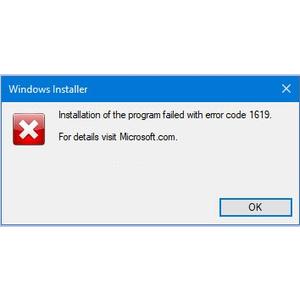
The Windows Installer is used by many software vendors other than Microsoft. In some cases, the installer can result in an error while trying to install a software product. One possible error is installer error 1619, with the message “This installation package could not be opened. Verify that the package exists and that you can access it, or contact the application vendor to verify that this is a valid Windows Installer package.”
Solving Installer Error 1619
The first step is to make sure you have the latest service pack installed on your Windows version. This should ensure that you have the latest Windows Installer. If you still have problems with the Windows Installer, try downloading and installing the latest Windows Installer version manually.
Updating the Windows Installer should also fix the access issue, where the user does not have the proper right in the NTFS folder that is used by the installer. If it does not help, check the access rights for the current user in the installation folder, or log in as a user with administrator rights and try the software install again.
When the installer is trying to download additional installation components from the web, like the Java Runtime library, installer error 1619 can mean problems with Internet access. So always check the firewall settings in those cases, and ensure the installer has web access. This is actually most common with the Microsoft firewall.
There is one more possibility for installer error 1619 to occur when you try to install an application that was developed with Visual Studio .NET with Web Bootstrapper settings, but for that please check the Microsoft Knowledge base article as it is rather specific. The issue is still that an installer package can not be downloaded though.
When an installation fails, please make sure you uninstall or remove the failed installation first, because many successive installation problems can be the result of a failed initial installation. So when upgrading, always consider uninstalling an older, existing version first.


@Tim – Thanks for sharing your findings!
In general it is good to try and run installers with admin privileges (right-click and then Run as Admin) when the regular install fails. Ownership of the file can also be important, although I don’t see how you would not have ownership of a file that is residing in your User-folder. Must be a specific issue with the googletalk update program.
But again, thanks.
I found a fix for the install error 1619:
I left the error notice open, I opened found where “googletalkpluginaccel.msi” was located
This is where it is on my computer.
C:\Users\My user name\AppData\Local\Google\Update\Install\{7C592B52-FB07-4756-AC39-5FB65538AD88}\googletalkpluginaccel.msi
I use a script I found on the web that adds a “Take ownership” item to the right click of an folder or file.
I opened Windows Explorer and navigated to the folder install folder, Right clicked on the folder the msi file was, waited for the CMD window to close.
Then Right clicked “googletalkpluginaccel.msi” selected install.
Then went to the google Plus page clicked “Start Hangout.”
It opened right up…
@George Lea – Try running a system file check, that could also help. You can type “SFC /SCANNOW” at the command prompt.
If there are any issues with the core Windows files (or their configuration in the Registry), it should get fixed by that.
I have Windows 6.1.7601, and I’ve tried “icacls * /t /q /c /reset” every conceivable way I can. However, what may be limiting my success is that I never could get past C:\Users\George to the root c:\ using Goto C:\. I also have to say that while I have installed the Take Ownership util, for some other problemic reason every time I right click on “Run As Admin” my Explorer shuts down. It used to work, but the only option I see for fixing Explorer shutting down is to reformat my drive.
1619 FIX for Google Video Chat Plugin, Should Work for other 1619 errors too I guess.
WORKS!!! Finally found a fix. I don’t know exactly what fixed it but it is related to Permissions and Ownerships that are messed up in Windows 7. The Google Plugin installer downloads the main msi file somewhere and when it tries to access it, it doesn’t have enough rights so it stalls with 1619 error.
1. Take ownership of your entire C:, I mean all your System Folders – Windows, Program Data, Documents and Settings etc etc. All the stuff that are hidden and system by default. Just Take Ownership of everything in C.
Google for that .reg file that adds a Take Ownership option in your right click menu. Make sure you are an admin. Right click each and every folder and take ownership.
** I couldn’t find out which folder the GoogleVoiceAndVideoSetup.exe thing uses, if you guys find out then just takeown that folder alone. **
2. Open Elevated Command Prompt.
Goto C:\
Type “icacls * /t /q /c /reset”
This resets all the ACLs and removes the problems with permissions and ownerships. ( or messes them up even more, but it Fixes the 1619 error!! )
** If you guys know which folder GoogleVoiceAndVideoSetup.exe uses for it’s temp download, then reset that folder alone. **
3. Install Google Video Chat Plugin.
Done! Took me 3 hours of googling to fix this. What a waste of time in the name of better security :-|