How to Solve Uninstall Errors
One of the most common problems of uninstall errors is that the configuration of the computer has changed. So in general try to make sure the configuration is the same as when you installed the problematic software.
Especially the installation location can be a problem. If you added a drive or changed drive letters somehow, that can be a problem. The same applies to folders. If the installation folder changed, the uninstaller will have problems finding and removing the software.
Some programs keep track of folders and paths used in and by the program, mostly in the Windows registry. In many cases, these entries in the registry need to be corrected or cleared before uninstalling the program will work. You can try using a registry cleaner to remove the entries and then try to uninstall the software again.
What is Uninstall Error 1324?
Error 1324 is a typical example of an installation error. The error can happen when installing or uninstalling software. The most common error message in this case is “Error 1324: The path xxxxxx contains an invalid character”, where ‘xxxxxx’ refers to a folder on your computer. Basically it means that there is a problem with the shell folders. You can manually correct the problem by modifying the registry to correct the path for the program you are trying to uninstall, or you can simply reset all shell folders in the registry. Both require editing of the registry. There are two registry keys in Windows XP and Vista:
HKEY_LOCAL_MACHINE\SOFTWARE\Microsoft\Windows\
CurrentVersion\Explorer\User Shell Folders
and
HKEY_CURRENT_USER\Software\Microsoft\Windows\
CurrentVersion\Explorer\Shell Folders
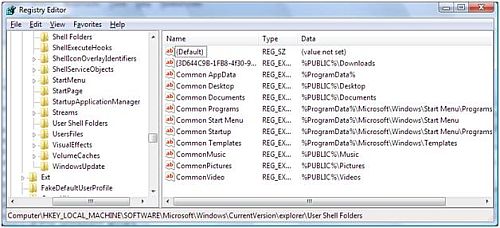
Check both for invalid drive letters and folders and make corrections as required. You can edit the registry or make sure the path exists by re-assigning driver letters and moving folders around. If you edit the registry, it is best to make use of the environment variables as seen in the screenshot.
Common programs that can suffer from this type of error are Windows Media Player in relation with URGE and Adobe Acrobat (Reader).
What is Uninstall Error 1404?
Error 1404 is an error that can also occur when uninstalling software. A common scenario is when you remove or uninstall antivirus software. The exact error message is:
Error 1404: Cannot delete ‘xxxxxx’. Verify that you have sufficient access to the key or contact your support personnel.
The ‘xxxxxx’ will refer to a registry key, and the problem is that the registry key can not be deleted as a result of insufficient privileges. The solution to this error is to manually change the access rights for the registry key and delete it. You need to click the Start menu and select Run. In the Run box, type regedit and press Enter. In the Windows registry editor, locate the exact key that is listed in the error message (the ‘xxxxxx’). Right-click the registry key and in the popup menu, select Permissions.
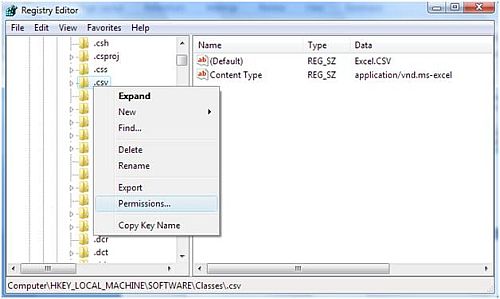
In the Permissions dialog box, make sure that the Administrator group has Full Control. Now again right-click the registry key and in the popup menu, select Delete. Click Yes on the confirmation prompt.
Other Uninstall Errors
If the PC configuration has not changed, you can also try reinstalling the problematic software, and then uninstall it. This can only work if you install the software at the same location as it is currently installed though. The reinstall can fix any problems with the registry paths and as a result, allow you to uninstall it.
Insufficient privileges can be another cause of uninstall errors. If you run Windows XP or Windows Vista, you can first try running the uninstall process under the user account that you used to install software, but in most cases an account with administrator privileges is required. This is especially true for antivirus software.
Antivirus software is tightly integrated into the operating system which requires sufficient access rights, both for installing and uninstalling the antivirus software. Error 25002 when uninstalling Norton Antivirus software is an example of such an error.
Since a lot of applications use the Microsoft installer for both installing and uninstalling software, a possible cause of uninstall errors is a problem with the Microsoft installer, MSIEXEC.EXE. Re-registering the MSIEXEC.EXE program can help in these cases.
I hope the above solutions help you with your uninstallation problems. If all these seem a bit too technical to do for your taste, you can always use 3rd party uninstaller software such as Perfect Uninstaller. Not only does this tool uninstall any unwanted software for you, but you can even use it to ‘force uninstall’ sneaky software that seem to embed themselves deep into your system.
Another plus is that if Perfect Uninstaller can’t, for whatever reason, remove the software you want to remove, you can use its built-in Special Uninstall feature to let them know what you want removed and you’ll get a reply within 48 hours on exactly how to remove it.


@Walter – If the program installer won’t work, you can try to delete the program manually. Delete the folder in the Program Files on the hard disk. The risk is that files belonging to the program that are residing on a different location are not removed, and the registry entries won’t be cleared. But you can clean up the registry with various tools anyway.
You could also try a program like SecureUninstaller. It should remove all related files and the registry entries.
I had issued removing some software my kids accidentaly installed on my PC. I couldnt uninstall it and a friend suggested I try CA Antivirus Plus.
It removed the virus but the uninstaller will not remove the program because it says files are in quarantine. How do i get around that problem
@Eric – Glad you solved it, and thanks for sharing the solution in your case. Simple indeed … once you know :)
Anthony, thanks for the reply. I figured out the problem. The test workstation had Office 2003 virtualized through SVS and so the section of the registry it was trying to access was protected through that. I created a new test box with Office installed locally and it worked.
It’s always the simple things…
@Eric – I have not seen the error 1404 come up with anything else than a permission problem. If you have already ensured that your user account has full access and ownership of the key involved, then the only other thing I can think of is that there is an “in-use” problem. Considering that you are changing Windows or Office related keys, it could be that a service or program is running that is blocking the access.
Two other things:
1. We are trying to distribute this through Altiris so having the users click on ignore is not a viable option
2. I modified the package to install with the credentials of the logged on user; when I try to install to my workstation I do have Full permission to the registry key mentioned
I am trying to install a package for Project 2007 on an XP SP3 machine and am getting the error:
Error 1404. Setup cannot delete the registry key \software\classes\xmlfile\shell\open
I am presented with three buttons: Cancel, Retry and Ignore. Cancel will stop the install, but will leave behind most of the files and folders under the install directory. Clicking on Retry brings the error back up. When I click on Ignore, the installation continues and the app seems to install just fine. I have already disabled all of my anti-virus and firewall software.
Any ideas?
@lwendo chikange – The .ldb extension is related to MS Access, so the only other possibility that I see is that there is other software installed that has a dependency on this key. Do you have anything installed that uses a database? Or maybe a programming environment like Visual Studio?
Try uninstalling MS Access first before uninstalling MS Office 2003.
After following up your solution, am still unable to delete the registry key or should i say Subkey. Let me lighten you up about my error.
MICROSOFT OFFICE 2003 ERROR SETUP
Error 1404. Setup cannot delete the registry key \software\classes\.ldb. verify that you have sufficient permissions to access the registry or contact your information technology department for assistance.
Please help how do i install this software on Vista Business??????
@Andrew – Try clicking the Advanced button in the registry key properties. Then select the Owner tab and make sure you change the owner to the Administrator or you current user login.
Ownership, access rights and ‘in-use’ are the main three causes of not being able to delete files, folders and registry keys.
If the ownership change does not help, there must a program or service locking the key.
Anthony
I have tried to delete an error 1404 from my registry. The only way I see it is when I command prompt and log on as administrator. I found the HKEY software/classes/xmlfile/shell/open and attempted to delete it. A red error comes up stating that there is a problem and cannot be deleted. I tried to change all the permissions to allow full control and still, I cannot delete the reg. key. What do I do now????
Instead of doing all these complicated steps, use the CCleaner soft, it’s free and it will clean all temp files, plus checks the registry and you have the option of repairing and sabe the files about to be removed (just in case ^_^) and then removing the entries on the add or remove programs menu…
Just with two clicks….
Hope you try it!
Melisa