Disable Windows XP Disk Compression
Both Windows XP and Windows Vista support data compression to increase the amount of data that can be stored on a disk. The physical disk size is unaltered of course, but like a ZIP file, the disk compression allows for reduced file sizes and hence lower storage requirements. The difference with ZIP is, however, that the Windows compression works like a device driver. Once enabled for a disk, the disk drive is used like it used to be. The difference is that the compression driver compresses all data on the fly before storing it on disk.
Very nice if you want to maximize the space on your disk, but a drawback is that all disk storage operations take more time. With a very fast CPU in your system, this might not be a problem, but if you want to maximize your PC performance you do not use disk compression.
To turn off Windows compression on a disk, right-click the drive and select Properties in the popup menu. In the disk properties dialog, uncheck the Compress drive to save space checkbox and click OK.
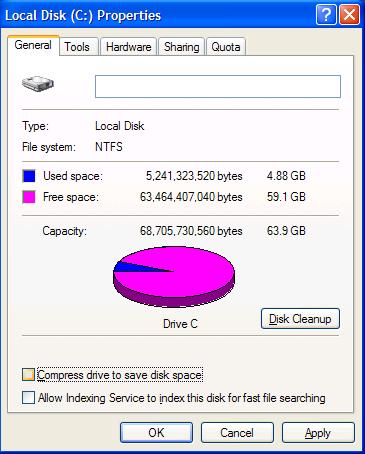
Taking it a step further is to completely disable the compression function in Windows XP and Vista. A registry tweak can be used to turn the compression off:
- Start the Registry Editor. From the Windows Start menu, select Run. In the Run box, type regedit and click OK.
In the Registry Editor, locate the following key:
HKEY_LOCAL_MACHINE\SYSTEM\CurrentControlSet\Control\
FileSystem- With the key selected, open the Edit menu, click New, and then select DWORD Value.
- In the name field for the new value, type
NtfsDisableCompression. - Now right-click this new entry and select Modify in the popup menu.
- Enter the value 1 and click OK.
- Close the Registry Editor. Select Exit from the File menu.
Keep in mind that you need to make sure none of the data on your system is compressed before disabling the feature, otherwise, the data can not be accessed anymore. Disabling the compression feature of Windows XP or Windows Vista should help you to speed up your PC and improve PC stability.
Note: This setting only works for NTFS filing systems, not for FAT or FAT32 filing systems.
For Windows XP there is a method to prevent users from compressing volumes. In Windows XP the complete disabling of the compression does not always work. Controlling the user’s access can help if you really need to prevent all compression.
If you do not want to use compression on your hard disks at all, you probably also want to disable the Windows compress old files function in the Disk Cleanup module.

@Event Log Monitoring – The reformat is not required when you only disable the compression option! Only when you want to change the cluster size on the disk do you need to reformat. Please keep in mind that these are completely separate things, and can be used independently from each other.
I’ve always unchecked this as it seems to help with system performance. Did not know that I needed to reformat the disk.
@Rex – Thanks for your feedback. Increasing the cluster size is indeed a valid method to disable compression in XP an 2003 server. The compression algorithm apparently only supports cluster sizes up to 4k.
There are a few issues with this method though:
1) you need to reformat the disk.
2) larger cluster sizes reduce storage efficiency, as smaller files will still use at least the size of a cluster for storing.
Fragmentation issues can also affect the performance with different cluster sizes, so some testing would be useful.
If the two points are not a problem for you, yes the increased cluster size can indeed be used to disable compression in XP.
Anthony
I’ve been told and found it to be true that the only way to get XP to leave files uncompressed is to change your cluster size to anything but stock. I use 32kb and there are never any compressed files on my machine. Neato, eh?
@Gene – The instructions are correct, but I have seen mixed feedback regarding the success in Windows XP. In some cases disabling the compression works and in some cases is does not. I have updated the article with a link to a method from Microsoft to prevent users from compressing volumes, as well as the link to the disabling of the compress old files function in disk cleanup.
Anthony
Is it possible that there are errors in these instructions? I am very interested in finding a way to completely disable both the compression option and the encryption option in XP. But I have tried these instructions carefully to no avail. The checkbox option for compressing files [right-click, properties, General tab, Advanced, “Compress Files to save disk space”] still exists and still functions after applying these steps. Even after restart.
Thanks for the help if possible!
GW