SplitCam – Share Your Webcam

April 8, 2009 by Anthony
Filed under: Software Reviews 

Webcams have become one of the most popular computer devices. Webcams can be used for a video chat, taking pictures and even to record videos.

There is a wide range of webcams and most laptops have integrated webcams nowadays. Resolutions and recording speed vary, but a webcam is available for all purposes. Any computer with a USB port can connect and use a webcam.

But this variety of webcams creates new problems in itself, software compatibility. Windows will generally support most webcams with standard drivers, but exotic webcams will need additional drivers and software. Before you can select and use your webcam in your favorite chat program, the right webcam drivers and software needs to be installed for Windows to recognize and control the webcam.

A separate problem is that the webcam can only be used by one application. In general this is not a big deal, since you would only want to use the webcam for one purpose at the time. But what if a program is using the webcam device without you knowing it? Or what if you have friends on different chat programs and want to use video chat with them at the same time?

SplitCam, split your webcam and use it in more than one application

SplitCam is a handy little application that allows you to share your webcam across applications. You can download SplitCam from the dedicated website. The executable installer is about 3.5 MB. Once you run the installer and follow the steps in the installation wizard, you will have a SplitCam icon on the desktop.

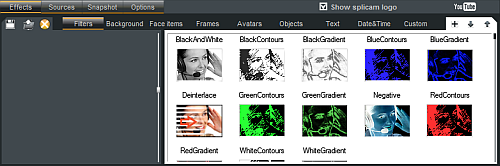
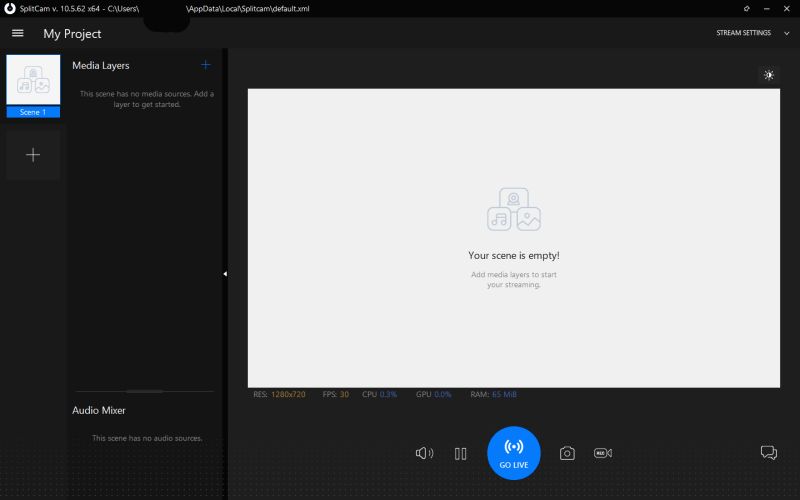
Running SplitCam will show you the main screen.

SplitCam main window

As you will see the program is free, but is using advertisements to compensate for costs. Not a problem, since you can limit the program usage to setting up the webcam.

The first thing to do is to check the video source setup. In the File menu, select Video source and in the submenu, select your webcam. If you have multiple video sources in our computer, make sure to select the webcam that you want to use.
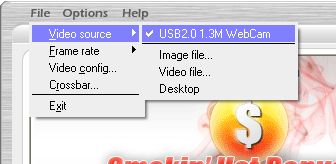
Select video source in SplitCam

Next, you can press the play button in the small video screen on the right-hand side of the SplitCam window. Your webcam image should appear, and you can take snapshots and see it full screen.

But the main purpose of using SplitCam will be to select SplitCam as the video source in other applications. Let’s take a look at Skype, where we now have the choice to select the original webcam as well as the SplitCam Capture.
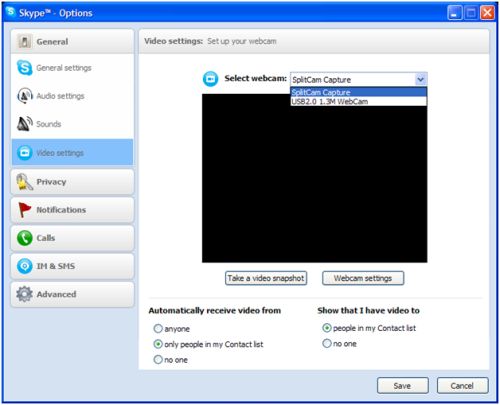
Wecam use in Skype

When we select the SplitCam Capture video source, the webcam image will show. At the same time we can still use the same video source in another application, like Live Messenger and Yahoo Messenger.

You do need to keep SplitCam running when using it as the video source, but it can be minimized to the system tray and it only uses 2 MB of memory in that state, so not really a problem.

Other SplitCam Benefits

Sharing your webcam across applications is nice, but using SplitCam can actually solve quite a few common webcam problems. SplitCam is compatible with all Windows versions, from Windows 98 to Windows Vista (I will try Windows 7 as well!). The only requirement is DirectX 9. The advantage is that SplitCam will support many more webcams than a lot of other applications. As a result you can select and use your webcam where you could not before.

Problems like no webcam image, a black or white screen, no device found errors, can often be solved by installing and using SplitCam.

SplitCam can also be used as a video player and image viewer, but there are better programs for that.

If you are interested in recording your webcam chats from instant messaging programs, check out EatCam.

I am certainly going to install it on all my Windows systems. Let me know what you think!

CLICK HERE to download webcam drivers!
uninstaller

Comments


41 Comments on SplitCam – Share Your Webcam

  1. Anthony on 13th Apr 2009 9:35 am
  2. SplitCam indeed works on Windows 7 as well!

  3. Brinnie on 4th Aug 2009 3:37 am
  4. Holy crap thankyou Anthony!
    Got a cheap webcam from Hanoi, wasn’t working for Skype but was for msn, and then I discovered this..
    You’re the man!
    Thanks heaps.

  5. JACK TIMPANO on 17th Sep 2009 2:45 am
  6. i tried instaling split cam but my computer responded by telling me that if i did do this it will disrupt my programs, is it safe to proceed after that.

    Jack.

  7. Anthony on 17th Sep 2009 6:36 am
  8. @JACK TIMPANO – SplitCam is perfectly safe, I have used in on both an XP and a Vista computer for quite some time already.

  9. Danny on 5th Oct 2009 6:59 am
  10. not working on windows 7 x64 :(
    any updates regarding it?

  11. Anthony on 5th Oct 2009 9:19 am
  12. @Danny – I have not tried it on a 64 bit system yet, but one other option you could try is ManyCam.

  13. Kevin on 12th Oct 2009 12:37 am
  14. when i try to use my webcam (its an older, logitech quickcam) it pops up with an error that says something like “its not supported” what can i do?

  15. Anthony on 12th Oct 2009 8:53 am
  16. @Kevin – SplitCam supports a lot of webcams, and often even works with webcams that are not supported directly by other programs, so if your webcam is reported as not supported there might be no other choice than to get a new one.
    What Windows version are you using? Sometimes older webcams are not supported in Vista because of driver availability. You can still used it in an XP configuration though.

  17. Kevin on 12th Oct 2009 5:45 pm
  18. im using windows xp, and i have installed the proper driver for it, when i try to use the webcam without Splitcam, it says its in use by another application, but i do not know which process to ‘end’ in my task manager to successfully use my camera! i was hoping Splitcam would fix this, but i suppose it could just be the webcam itself

  19. Anthony on 13th Oct 2009 10:02 pm
  20. @Kevin – Could be. One last option is that the sharing setting in the webcam is not set properly. Not all webcams have this, but some do. Should be in the driver properties or the webcam program.
    You do not have a TV card installed in the PC by any chance?

  21. amanda on 2nd Nov 2009 7:30 pm
  22. my webcam was working just fine in skype then all of a sudden i got the same error message, saying it was already being used by another program. so i downloaded splitcam and opted to use it as my video in skype but the screen just stays black. i know my webcam isnt the issue, as it worked fine prior to me adjusting the sound in skype. any advice on what could be the issue here? i do not have a tv card

  23. Anthony on 3rd Nov 2009 1:12 am
  24. @amanda – Do you see yourself in the SplitCam window? Make sure you select your webcam as the input video device in SplitCam itself first. Once that works, Skype should also work they way you tried it.
    Other options are reinstalling Skype or downloading and installing DirectX (again).

  25. Danny on 3rd Nov 2009 1:42 am
  26. the same problem as amanda here. I tried both SplitCam and ManyCam but with no success. I tried to contact camera manufacturer but it seems they have no idea what’s going on. I guess I would have to reinstall the whole system to make it work. I am sure that this problem is caused by some kind of software/driver/service conflict because after installing OS the camera worked fine but I have no Idea what causes this problem.

  27. alex on 21st Nov 2009 7:29 am
  28. @Anthony
    Can you pls tell me how you made the splitcam work on win 7?
    Ive just downloaded the .exe and when i try to open splitcam it says the driver is not compatible or something.I also have this problem with Winfast driver and application for my tv tunner. I get a message from windows saying the driver was blocked due to incopatibility. Can you help me with this.?
    Thank you

  29. Kyle on 21st Nov 2009 12:39 pm
  30. @alex – If you have a TV Tuner card in your PC, that can often be a problem in combination with a webcam, as both can be used as video input sources.
    I just installed SplitCam on Windows 7, nothing special.
    Try disabling your TV card/tuner in the Device Manager and run SplitCam again.

  31. alex on 21st Nov 2009 2:14 pm
  32. @ kyle , icant disable tv tunner, i need it. I need to make splitcam work with the video capture from tv tunner.I tryed manycam also,installed it but when i tryed to open the capture, it sayd i have to select other video capture.Not the one from tv tunner.
    And splitcam , i was able to install it.But when trying to open , same error.Driver not compatible or something.Which is confusing, because i have win 7 that works both with x64 and x86.Since the driver of splitcam isnt x64 and is the old x32(x86) still not working.

  33. Kev on 27th Nov 2009 4:11 am
  34. Anyone able to make splitcam work on windows 7 (64 bits)? i just bought a new cam because my old one was not supported on win 7 anymore and now that i have a new cam, i intalled splitcam and when i try to open it, i get the message : Error installing driver for the virtual SplitCam capture device. Please restart your computer…

    Is there any other software doing the same job, other than manycam which obviously from other users here doesn’t seem to work on win 7 either? :+(

  35. alex on 27th Nov 2009 6:39 am
  36. Nope, i dont think so …i tryed splitcaam,trackercam, manycam.Manycam has a version compatible and recognized by microsoft for windows 7.But it still doesnt work.
    I see only one guy here sayd splitcam works, but after all the things i tryed to make it work, i think its just bullshit. Obviously he doesnt have anything to do, just make people fry theyr brains to make splitcam work because he sayd it works on Win7.

  37. Anthony on 27th Nov 2009 12:07 pm
  38. @alex – Not sure why you feel the need to express yourself in such words despite your frustration. Actually Kyle was right, SplitCam does work fine on Window 7, but indeed only on the 32 bit version.
    Even on Windows Vista 64 bit it does not work, which must be a driver architecture issue. I have tried to run it as an administrator as well as in XP SP2 compatibility mode and it does not work.
    Let’s hope the manufacturer’s come out with an updated version soon!

    @Kev – This answers your question as well. So far I also have not found another tool that works for 64-bit Windows versions :(

  39. Kev on 28th Nov 2009 1:28 am
  40. Hi! i just found something to replace Splitcam for users of Windows 7( 64 bits). It’s ScreenCamera 1.9.6.00
    Virtual Camera for your Desktop and Webcam Splitter
    Shareware | $29.95
    Ok, i know it’s a shareware that you need to purchase but hey, what we want is something that can do the job and i think i will pay for it, unless someone can advise me quickly of another software that would be free… So waiting for your other solutions until my trial expires.

    Hope this is useful for someone else too!

  41. alex on 28th Nov 2009 9:19 am
  42. @Kev
    This thing acctualy works, the only impediment would be that you get the publicity bar on the image capture with “screen camera trail version:” .Tryed to get it off but i dont think it can be removed.
    Thxs a lot Kev.Its better than nothing.

  43. Graham on 29th Nov 2009 4:56 pm
  44. Well after converting Vista to Win 7 with splitcam already installed I couldn’t start splitcam until I had un-installed splitcam and then re-installed it.
    I can get cam picture on splitcam screen but splitcam isn’t shown in Live Messenger pull down list for selecting camera. Shut down splitcam and I can get camera on Live messenger
    Trying to get splitcam on Irfanview selecting twain source, splitcam is not shown. However using Irfanview I can get the splitcam image by just clicking Aquire/Batch scanning so its recognised that way.

    On XP these show OK

  45. kimi on 2nd Dec 2009 11:16 am
  46. my split cam was working fine for about a week, now i get the error message ‘
    the device is not supported.
    set device: Render stream() failed with error code 0×80070057.

    what does it mean, i restarted my computer and it didnt solve the problem, nowwhen i try to start the webcam on its own ots says ‘camera busy’ but the camera isnt running, not even in the task mamager!!.
    what to do, i have uninstalled and re-installed split cam, but this didnt work either. i’m at my wits end.

  47. Anthony on 2nd Dec 2009 2:06 pm
  48. @kimi – I am not familiar with that error in combination with SplitCam. Chances are that something was installed that causes the error, maybe a Windows update or some other software.
    Try using system restore to restore the system configuration from a week ago and see if that restores the functionality.
    Another possibility is to reinstall the webcam driver if you have the driver installation files.

  49. Rachel on 17th Dec 2009 6:24 pm
  50. i tried to DL splitcam but i always get an error message. how can i get the software to work properly?

  51. Anthony on 17th Dec 2009 11:35 pm
  52. @Rachel – Are you getting an error downloading the installer or executing the installer? And what is the error exactly?

  53. David on 26th Dec 2009 12:09 pm
  54. I have Windows 7 & can not get Split cam to work on here now. I use to have Xp & it worked fine. please help

  55. Anthony on 26th Dec 2009 1:05 pm
  56. @David – SplitCam is not compatible with the 64-bit versions of Windows, so if you are using Windows 7 65-bit, it will not work. You could try SplitVideo, which claims to be 64-bit compatible. If you are using Windows 7 32-bit, please let me know what error you are getting.

  57. alex on 26th Dec 2009 6:12 pm
  58. I changed my OS with windows xp sp3. Splitcam isnt working…i can open the application, the video source is already selected (my tv tunner) but when i try to press play it sayd Device is not supported. Render stream eror, and a number something like 0×800700552 …any ideea what is wrong with it? Do i have to make any other settings???

  59. micutz on 6th Jan 2010 10:15 am
  60. does not work on 64 bit windows… works on xp to 7 but only 32 bit versions

  61. Elma on 25th Jan 2010 4:34 pm
  62. I wounder why i cant open splitcam when it was sucessfull downloded on my computer ? it comes up some error telling me to restart my computer and let it try again , but still dosnt work ?

  63. Anthony on 25th Jan 2010 5:58 pm
  64. @Elma – What is your Windows version? And can you give the exact error message?

  65. Fred on 26th Jan 2010 12:15 pm
  66. Anthony. Similar to 31-32. Running Window 7. The exact error message is “Error Installing driver for virtual Splitcam capture device. Please restart your computer and try running the application again. If the problem persists contact the software developer.” I have restarted my computer several times and the same message appears. I re-ran the set-up icon in modify mode and repair mode to no avail. Even though the software installation appears successful, I keep getting the above error message. The laptop is new and this is my first time trying to get spltcam to function on this laptop. Please help.

  67. Anthony on 26th Jan 2010 1:34 pm
  68. @Fred – Are you running the 32 bit version of Windows 7?

  69. Adam on 26th Jan 2010 6:21 pm
  70. I am running the 32bit version of Windows 7 and have just tried to install and then launch SplitCam and I also get the message about being unable to install the virtual SplitCam capture device.

  71. Adam on 26th Jan 2010 6:27 pm
  72. However, now I have just tried to run splitcam in compatibility mode (right-clicked on the program and selected ‘Troubleshoot Compatibility’ and got it to run as Windows XP SP2. When the program launched it went ahead and installed the driver (although it prompted it was not signed).

    After this is works fine for me.

  73. mario rizzototo on 29th Jan 2010 10:10 pm
  74. Reference to Split Cam running in Windows7, it just WONT!! Microsoft or someone in authority needs to fix whatever. I go to buy a brand new computer and find that the old works better. This Windows 7 sucks anyway, why do they keep up or downgrading their stuff. Money, I suppose…Get with it Gates…

  75. Jeray on 13th Feb 2010 12:41 am
  76. For Windows 7 64 bit try:
    http://www.manycam.com/

    Thats what I use and it works fine for me..

  77. ayezza gonzalez on 6th Mar 2010 6:52 am
  78. i want to know how do i have a splitcam in my desktop?

  79. ayezza gonzalez on 6th Mar 2010 6:53 am
  80. i want to know how do i have a splitcam in my computer desktop?

  81. Anthony on 6th Mar 2010 3:23 pm
  82. @ayezza gonzalez – SplitCam will simply show in the Windows Add/Remove programs list in the Control Panel. On the desktop, you would see it….

Registry Mechanic

Leave a comment...