How to Troubleshoot Sound Problems in Windows XP
No modern PC can and should do without sound. Windows XP as well as a lot of applications use sounds to give feedback to the user or to signal an event happening. And when you play an MP3 file or watch some video, you definitely want to hear sound from your speakers or headset. Another typical area where sound problems can come up is while making voice calls over the internet. Skype, AI, MSN, Yahoo, and GoogleTalk, they all are very suited for voice calls.
When you are facing audio problems, a structured way of finding the cause can be helpful. We will skip the steps where you check if everything is plugged in properly since that should always be the case. If your audio card uses jack-sensing technology, make sure you select the proper device when asked about it (when plugging devices). Follow the green = speakers, pink = microphone, and things should be okay.
Troubleshoot Sound Problems in Windows XP – Sound Errors
In some cases, you will see a concrete error that can help you fix the sound problem in Windows XP. The media player you are using can give an error, or you can check the Device Manager and see an error on the audio device.
Typical examples of sound errors in Windows XP are:
- WAV sound playback error detected
- Your audio hardware cannot play files like the current file
- No wave device that can play files in the current format is installed
- Windows Media Player cannot play the file
- This device cannot start. (Code 10)
- The drivers for this device are not installed. (Code 28)
It is also possible that there is no error, but:
- there is simply no sound
- the sound is not working for internet pages
- the sound only works on a headset and not on the (monitor) speakers
- sound is of bad quality
- surround sound is not working.
In all cases, it could be an audio configuration problem, but often it is a driver problem. The best approach is to go through the steps below and check each aspect.
Steps to Fix Sound Problems
- If you have an onboard audio card, you need to make sure the onboard audio device is enabled in the Bios. Instruction will vary per motherboard, so you need to follow the instructions in your PC or motherboard manual for this. If you are using a separate sound card, the onboard should be disabled of course!
- In Windows XP, open the Device Manager (open the Control Panel -> double-click the System icon -> in System Properties dialog box, select Hardware tab -> click Device Manager button).
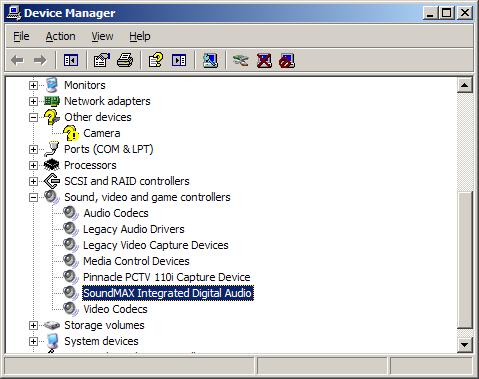
- In the Device Manager, open the “Sound, video and game controllers” group. Here you should see your audio device as shown in the image.

- If the sound device is not listed, check if any devices are listed in the “Other devices” or “Unknown devices” group, most likely with a yellow exclamation mark.
- When the device is not listed or if devices are listed under the “Unknown devices” group, the most likely cause is a missing or incorrect device driver. If you have the sound driver for the sound device, (re)install the sound drivers. If you do not have the drivers the easiest method is to use a driver update tool.
- If updating the drivers does not work, you need to find the cause of the problematic device.
- In case the sound device is listed in the Device Manager, and you still do not have sound, first open the Control Panel.
- Within the Control Panel, double-click “Sounds and Audio Devices”.
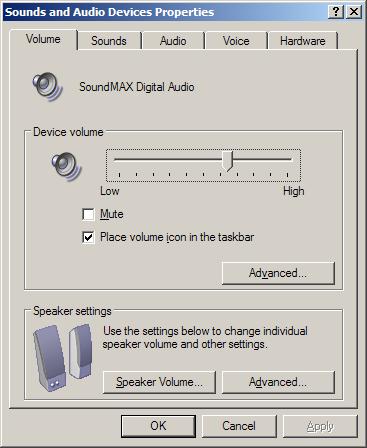
- In the first screen, with the Volume tab active, make sure the Mute checkbox is not selected and that the volume slider is close to High.
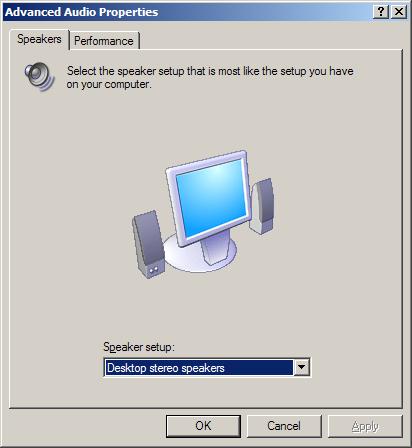
- Next, click the Advanced button, and in the Advanced Audio Properties dialog box, make sure you have a valid Speaker setup. At least make sure it is not set to “No speakers”. Click OK when done.
- Now click the Speaker Volume button. Both the Left and Right speaker volumes should be close to High. Click OK when done.
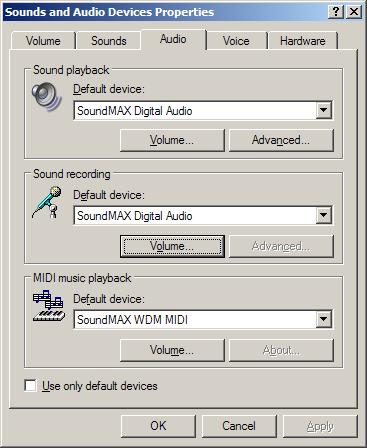
- Next, select the Audio tab in the Sounds and Audio Devices Properties dialog box.
- In the Sound playback group, you want to set the Default device to your sound card device. Part of the name will normally match the name you found in the device manager.
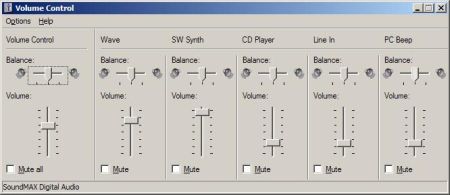
Also, click the Volume button in the Sound playback group and adjust the Volumes to a high enough level. The Volume Control will show the mixer, which does depend on the audio device installed. The sample has a SoundMax audio card. Clear all the Mute checkboxes.
- You can repeat these steps for the MIDI music playback.
- Although not a frequent problem, check if the Audio Service is running:
- Select Administrative Tools in the Control Panel.
- Then double-click Component Services, which will open a separate window.
- In the left-hand pane, click Services (Local).
- In the right-hand pane, scroll down to the Windows Audio service and make sure it is not disabled. If necessary, right-click Windows Audio, in the popup menu select Properties, and then set the startup type to Automatic.
- If you have sound problems in games, you can check the sound card resources. Especially older games have limited detection of sound cards concerning resources (IRQ, I/O address range).

Test Sound with an Application
With these steps, you have checked and adjusted the sound setup in Windows XP. If sound problems persist, chances are there are problems with the sound settings in the application you are using. If the sound problems are present for all applications, there probably is something wrong with the hardware.
The best application to test your sound setup with is the Windows Media Player, as it will use the standard Windows sound setup, which you just verified and adjusted.
One setting in the Windows Media Player that needs to be verified is the DirectSound device.
- Open the Windows Media Player.
- In the Media Player, select Options in the Tools menu (press the Alt key to show the menu if not visible).
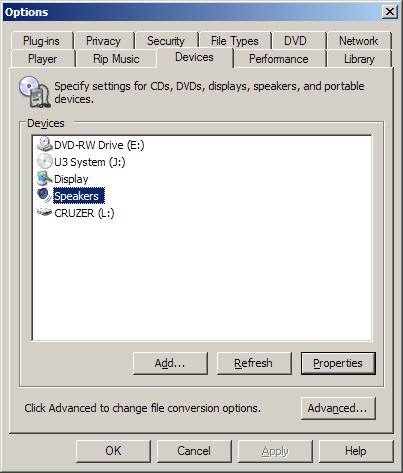
- In the Options dialog box, select the Devices tab.
- Now select the Speakers device and click the Properties button.
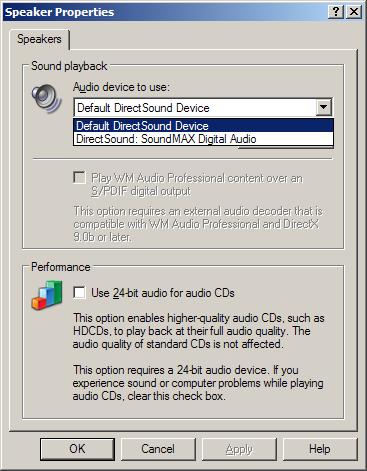
- In the Speaker Properties dialog box, select the audio device to use for Sound playback. By default, it will have Default DirectSound Device selected, but you can change it to the DirectSound device that is listed for your audio device.
Also, clear the Use 24-bit audio for audio CDs, for now, to make sure that this Performance setting is not causing any problems.
- Click OK to close the Speaker Properties and then click OK again to close the Options dialog box.
For testing purposes, use an audio file that was installed with Windows XP. These audio samples are standard audio files, which do not require any additional or special audio codes.
Other applications that use sound will normally have a similar option to change the sound device selection and volume. For games, the sound setup is particularly sensitive. The right and latest device driver is often required.
Audio and Video Codecs
When a computer plays an audio or video file, it will decode the audio or video data to be played with the sound device. Each different audio and video format requires its own decoder, or codec. One of the possible problems with no sound is that the right audio codec or video codec is not installed.
If your standard audio files do play, but a certain MP3, AVI or WMV file does not produce audio, the first thing to try is to install missing codecs. You can try and find out which codec is required and then find and install that code, but luckily there are a number of codec packages that can be downloaded and installed.
One of the most used codec packages is the K-Lite Codec Pack. With that installed most audio and video should play without problems … and with sound. There are more of course, a quick internet search can help you find others.
Find Out Which Sound Card Is Installed
Knowing exactly what type of sound card is installed in your computer can be of great help in looking for solutions to sound problems. It can help you find the right sound driver, lookup software, and maybe help search the internet for more targeted problem descriptions based on manufacturer and model.
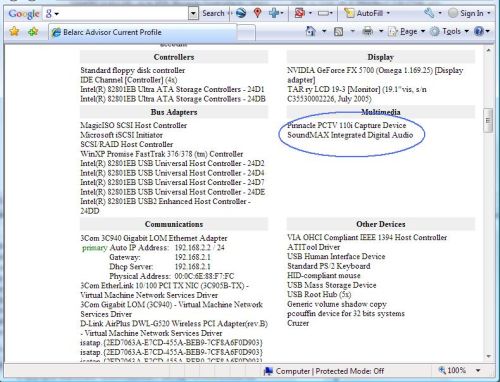
One handy way of finding out which sound card is installed is to use a program like Belarc Advisor. It will analyze your system and tell you about your hardware and software.

@Mike – Most likely there is a program running on your daughter’s computer that is playing the music clip. Try closing all programs, and then check if it still plays.
If so, check the task Manager for any non-microsoft programs and try ending those programs as well. If you do that one-by-one, while listing to the headphones, you will be able to pinpoint the program.
Using the “msconfig” command you can control the startup programs and possibly deactivated a startup program that is causing it.
I am using my daughter’s computer. When I plugged in the headphones, I get a continuous music beat sound loop, it repeats after about 8 seconds, over and over….it never stops. I can hear others sounds the way I am supposed to, but I this music beat is always mixed in with it. So it is hard to hear other sounds.
If I go in the volume control and mute the “wave” volume bar, it goes away, but of course I don’t hear anything then.
@Shai – That new audio device looks like the audio component of a TV Tuner device, and not a webcam. Did you maybe connect a USB TV Tuner? Have a look at the Device Manager and see if you can uninstall the device there.
All of a sudden playback on all audio is slowed to half speed..youtube films, mp3’s..any audio file played by any program or website is suddenly sounding like a 45rpm record played at 33rpm.
I have gone to device manager and everything is checked and working correctly. FYI i am on a laptop clone running Windows XP SP3 with a built in Realtek AC97 sound card and up to date drivers. Everything was working perfectly and for years until last week when all the audio slowed down.
The only thing that is new is an entry I can only find in the audio console manager…713xBDA analog audio capture..which is a webcam app and for the life of me I can;t understand that since I have only ever used a logitech webcam and it is not attached right now.
The Realtek mixer say my output is set to 44.1khz same as always I think..and playback bitrate is set to 128
Any ideas? Thank You!
thnx men appreciate that!
@Leo – The first thing to look at is the Adobe Flash Player, as that is used for YouTube movies. Try updating or reinstalling it.
Also check your network connection settings. Try typing “ping -t http://www.yahoo.com” at a command prompt and see the reply time.
I have a problem with “hearing clear sound when watching movies of sort videos online, is like distorted sound but is with every playback sound from the internet. cant even watch and hear clear on youtube. Please your help would be greatfull.
@Mark – So even with other speakers you have no sound in the left speaker? I assume you use the green OUTPUT jacks on the computer, not the inputs, right?
And just to make sure, you have fully inserted the audio plug into the jack? And you did check the balance setting in the Sound option of the Control Panel?
If that is the case, it could indeed be that the audio device is really broken, it is electronics, so it can break.
But at least try installing the original audio drivers for the sound card.
Hey Anthony
My Probelem Is that I Cant Hear Any Sound Trough The Left Speaker. I’ve tried plugging the jack in both inputs on my computer, i’ve tried useing other speakers, i’ve looked in speaker volume and the mixer and every things normal
I have no idea whats Wrong!
Please Please Please Help Me!
@ahmed – One more thing is to check that the Windows Audio Service is running, as described in the article about no audio device.
But most of the steps above would actually not make sense if the audio service is not running, so that might not be it.
Did you check if the required audio codecs are installed?
i checked every step that u mentioned but the problem is still happening ……….when i install the jack ,the pc read it ,and notify me that the jack was installed ,and the speakers are ok ,so what can i do to solve that problem ?????? plz notify me as soon as u can
………….thank u :D
@Ramil – Make sure you uninstall the drivers for the ISA sound card completely, that could be a problem.
Also check if the onboard sound card is enabled in the BIOS, possibly it was disabled when the ISA card was added.
After that check the Device Manager to make sure the onboard audio device is recognized and working (you might need to install the sound drivers for that).
i put a sound card on the ISA slot but when i remove it, sound card on board didn’t work but before when I am using it(the on board sound card)there is a sound what happen? how can i fix the problem
@Tom – And you default playback device is showing the Realtek sound device? Not some virtual device from the TV Tuner software?
@luca – I am assuming that you mean you re-formated and installed the previous OS, Windows XP or Vista. In that case, the most obvious problem is that you need to install the sound drivers. Windows might not have the right drivers for your sound card by default.
my computer isnt making any sounds we just not long ago downloaded windows 7 and had to reewipe the computer cause it made my computer go weird so how can i fix this propblem? please get back
cheers luca
You are right, Same with a CD. The only thing that puts out actual sound is a TV program.
One other thing I can think of is that there is an issue with the codecs, although that does seem a little unlikely considering your scenario. So what happens if you use the Media Player to play an MP3 file? Plays fine, but just no sound?
Yes, I downloaded the latest version and installed it. I am using a Realtek AC’97 Audio board and the driver is Version 5.10.0.6300.
@Tom – Did you try reinstalling your audio driver? Might be that the TV Tuner software affected the audio configuration in a way that can not be corrected through the regular audio settings.
Looks like a lot of people have problems with Windows XP audio. Mine is a little different. I installed “Super TV Tuner” and the sound from the TV program works fine but I don’t get sound from anything else. I uninstalled the TV tuner but that didn’t help. I have tried everything that I have been able to find on the internet but nothing works. Any ideas?
@Nikhil – Where are you getting “no audio device”? And the properties of what, where show you that the sound drivers are working properly? In the Device Manager?
You have tried uninstalling and reinstalling the audio drivers?
I cannot hear any sound .i m getting no audio device. But in properties it shows that the sound drivers are working properly. what should i do??
@Madee – Check your volume levels for the audio recording and audio input device. We have some instructions for Vista online.
i can hear the sound from my computer fine but the only problem is when i am talking over the mic the other person cant hear me. i also cant record my own voice.
any solutions plsss
yea tried that
but still goes back to desktop speakers