Turn Off Windows Active Desktop
Active Desktop is a nice Windows feature that allows you to have web content on your desktop. Indeed a nice feature, but unfortunately not something that benefits computer stability. It requires that the web page that you configure as content for the active desktop is available. This means your internet connection needs to be active. There are also several known problems with Active Desktop that relate to the mshtml.dll file. Further, problems with anti spyware, and inconsistent behavior have been reported as a result of Active Desktop.
Of course the use of web content on your desktop not only affects your PC stability, but also your PC performance. Processing web content to be displayed on your desktop will take more processing time then a simple background image that resides on your local hard drive. The speed in which the web content is available is another factor to consider. So your internet speed actually impacts the performance of Windows XP this way.
If all this (or other factors) make you decide you want to turn off Windows Active Desktop, follow these steps:
- From the Windows Start menu, select Control Panel.
- In the Control Panel, select Appearance and Themes.
- Next, click Display.
- In the Display Properties windows, select the Desktop tab.
- Click the Customize Desktop button.
- In the Desktop Items window, select the Web tab.
- Make sure that all entries in the Web pages list are unchecked. Another option is to select the entries and delete them by clicking the Delete button.

- Click OK to close the Desktop Items window and then close the Display Properties window.
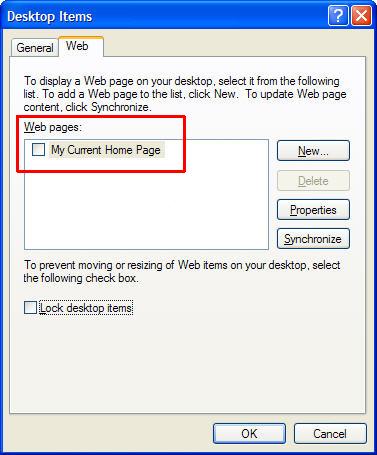
These steps should help you restore or ensure PC stability and probably help you speed up your computer a little more.
If you are comfortable in editing your computer registry, there is another way to disable the active desktop in Windows XP. Follow the steps below to force the Windows Explorer to use the Classic Shell, which in effect disables the active desktop functionality.
- From the Windows Start menu, select Run. In the Run box, type regedit and click OK.
- In the Registry Editor, locate the following key:
HKEY_LOCAL_MACHINE\Software\Microsoft\Windows\
CurrentVersion\Policies\Explorer - Create a new DWORD Value with the name ClassicShell, and assign a value of 1 to it.
- Close the Registry Editor. Select Exit from the File menu.
These registry tweaks will have the same effect, increasing your PC’s stability by disabling the active desktop in Windows XP and preventing a web site as desktop contents.
Update for Windows 10
The Active Desktop functionality has been removed from Windows versions after Windows XP. If you would like to use an active desktop in Windows 10, to show dynamic content, you have two options.
- Use an app to enable active content – this really only allows you to use videos as desktop background.
- Use a third party app to show the content of a webpage on your desktop.

Alright! Well I guess I have to tap someone to this if cooling does not work. Thanks a lot, Kyle!
@sheenamei – An electric fan can definitely ‘do the magic’! It is just about making sure the laptop temperature is not the issue, and especially in a warm climate this can be a problem.
If cooling does not help, you might want to get someone a bit more tech savvy to help you if you are not comfortable with the steps involving the BIOS and drivers.
Thanks for the response, Kyle! I’ll try that one about improving the air circulation. Could an electric fan do the magic? Sorry for sounding so dumb. I’m not really good with computers. The thing also is even if I just had opened the computer and started burning a file it would shut down as it reached 3% of the download. I also have not checked my BIOS setting, this is actually my first time to hear that. I skim searched about it just when I read your reply, and thought if I got to press the key for that I might not be able to do the right thing there and screw this thing a lot more. What would it do if I turn off the thermal protection? I have not checked my device drivers also and honestly don’t know what to check for if I would.
@sheenamei – It is possible that the active desktop has nothing to do with the cause of your problem itself. Have you checked if the laptop is getting hot at the bottom? Could be that when the hard disk is in use for a longer period (downloading and saving a file, and the file conversion), that the system overheats and shuts down.
Try playing something under the back edge of the laptop to improve air circulation and then try again.
If that is really the cause, you can check the BIOS setting to see if there is an option to turn of the thermal protection, or, worst case, you need to replace the HDD (I would consider an SSD in that case).
If it is not hot when it shuts down, something else is causing it of course. Did you check the device drivers for all hardware?
Hi, Kyle!
I’m actually having trouble in my laptop. It would shutdown automatically without any notice or prompt saying it would turn off. This is often especially when I am downloading or converting a file, or when I am editing a photo. Then, when I turned it on a display on the desktop states “Active Desktop Recovery” with the tips on how to do so below it. Tried those but the computer still experienced automatic shutdown, like always. Such a hassle when I need to complete something important.
second step in registry editing is:
2.In the Registry Editor, locate the following key:
HKEY_LOCAL_MACHINE\Software\Microsoft\Windows\
CurrentVersion\Policies\Explorer
it shud be
2.In the Registry Editor, locate the following key:
HKEY_LOCAL_MACHINE\Software\Microsoft\Windows\
CurrentVersion\Explorer
@rbrain – What is the error you are getting? Make sure you use an administrator account to ensure you have sufficient rights to edit the registry.
Everythiing fine until I got to registry editor. It will not allow me to create classic shell.
I dont have tghe web tab that all these sites mention
thanks a lot. this help is a grt oferr to helpless people like me. thaks a lot again.